After building a skill with Claude to quickly get an understanding of table schema structure, I had the immediate and necessary desire to replicate this functionality with workflows in PowerApps. Any time you start on a new project, once you understand the table schema, the next thing you want to get a handle on is how data is moving between schemas, modules, and functions. And because we all write our flows a little differently, it can be very hard to figure out what someone was trying to do when they wrote this code 1, 6, 9 or 18 months ago.
To solve this problem, I created a skill that quickly documents this work for you and presents it in an easy-to-understand fashion.
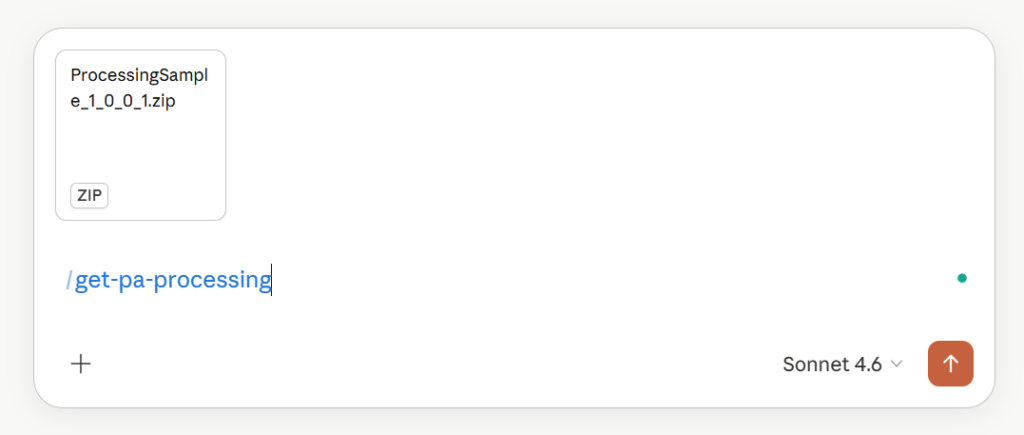
Similar to my table schema skill, I added some prompts to allow me to refine what I wanted done when I upload a solution to be parsed.
The Usage

Choose whether you want the solution to be updated with the AI generated descriptions for later use.
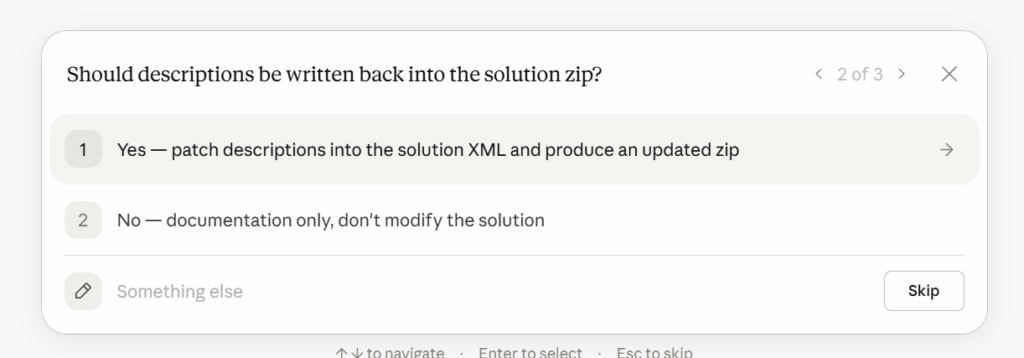
Do you want to see a summary, or do you want the skill to go in-depth on your flow?

If you select “Generate all,” you get a summary of everything, but better than that is the analysis that is performed on each flow as it breaks down and provides an analysis of how it works.
To give this a try, I downloaded the Managed Solution Microsoft CoEStarterKit – https://github.com/microsoft/coe-starter-kit/releases
The Results
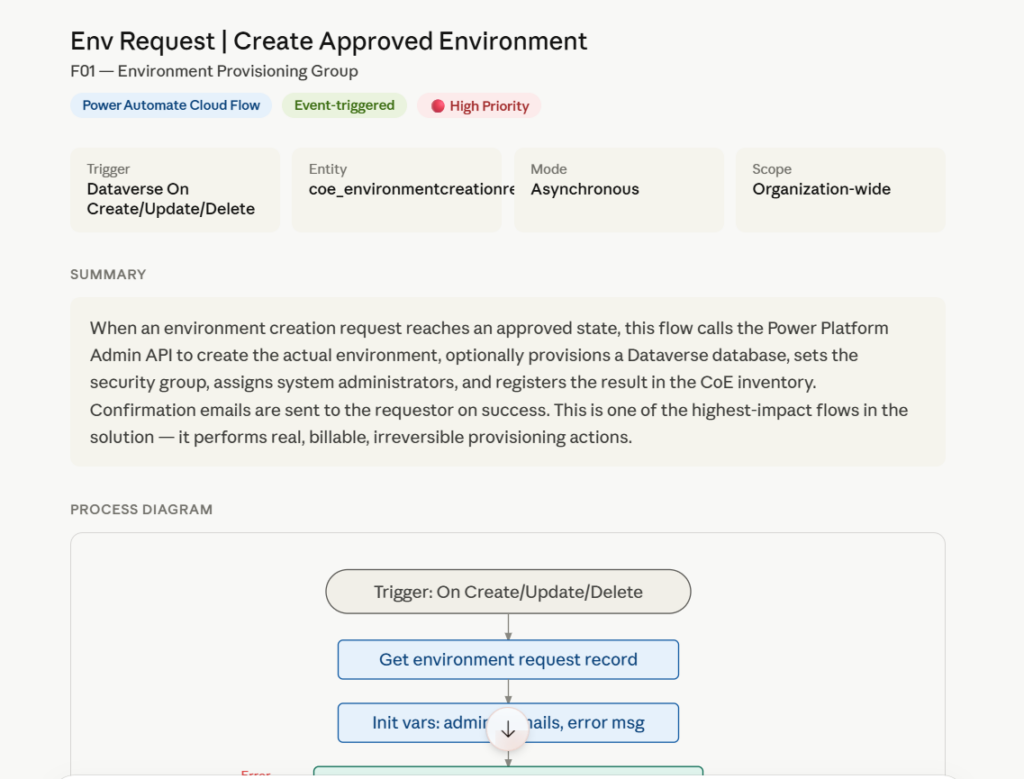
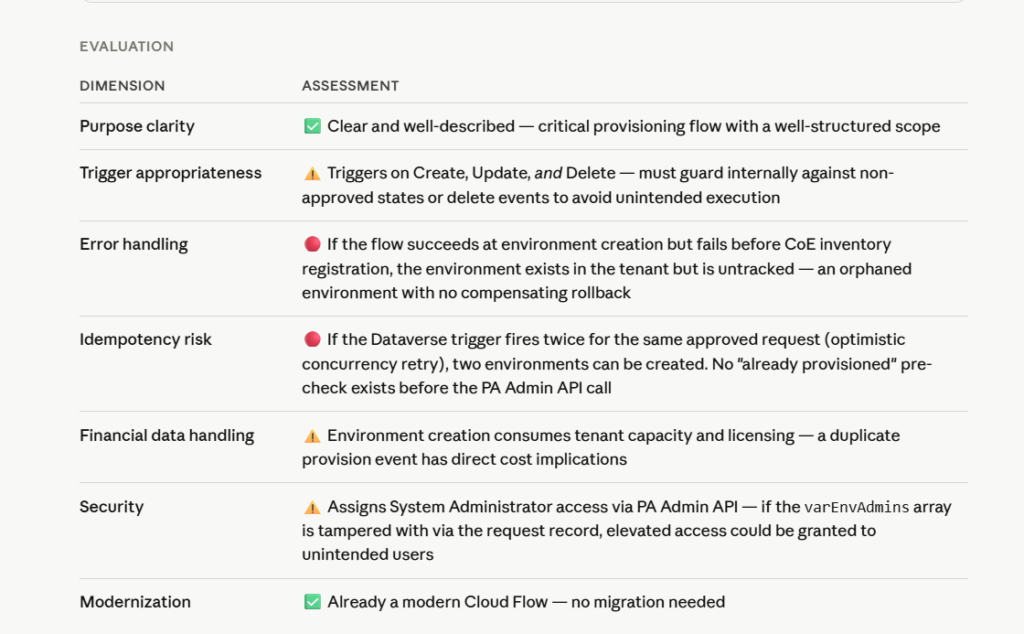
After running the skill, you will get a detailed summary of how things operate within the flows, rating them high to well-structured in their approach to coding and handling.
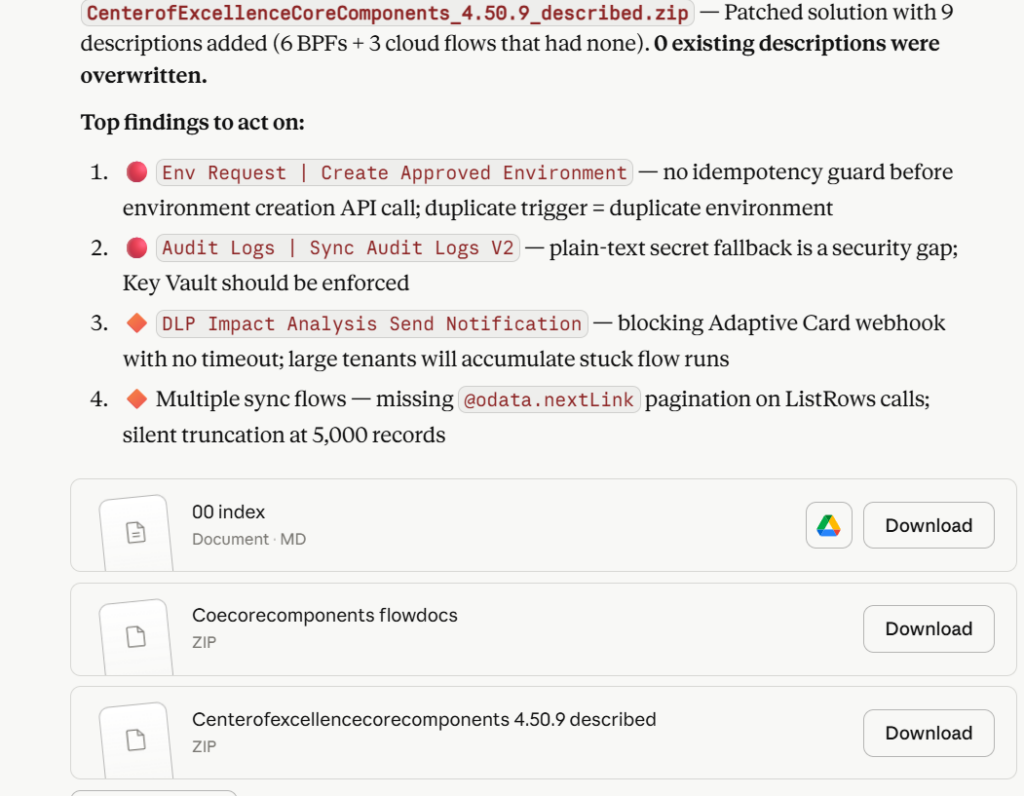
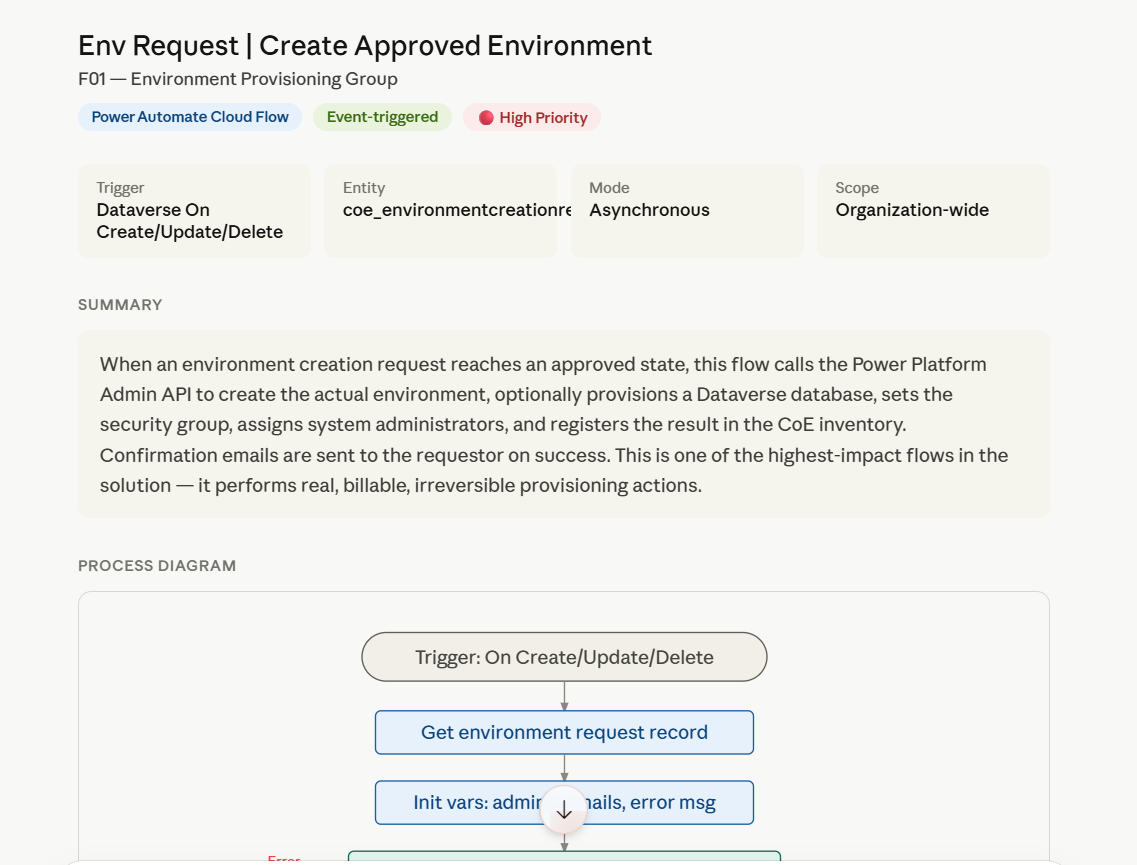
Honestly, though, my favourite part is that I leveraged the Mermaid Chart plugin to build me out a workflow of how the system works, along with providing me a profile of the flow itself, which is great, as this helps me get a quick handle on how it works and what concerns I should be digging into.
Great for a first-step analysis into complicated, vintage, monolithic flows.