For a while now, I’ve been using Power Automate like everyone else and sending messages to users via Teams using the base “Post Message” action in Teams to notify users of what is happening in their flow. Although this provides a good method to integrate your flows with end users, it’s only your first step in providing integration to the end user.
Adaptive Cards
Teams Adaptive Cards are a way to provide richer formatting and expanded context to your users with minimal changes to your flow, allowing for deeper integrations with data that is running in your flow.
To get started, you are going to want to use the “Post card in a chat or channel” action.
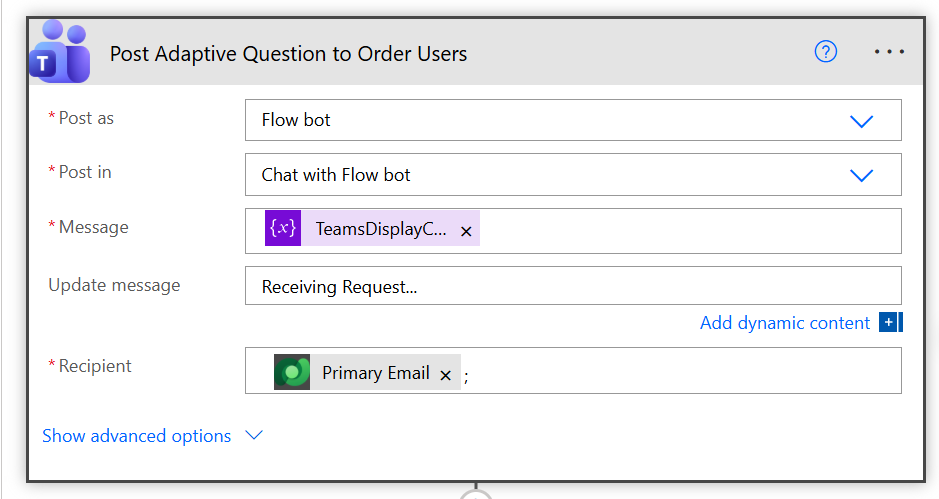
That’s all you need to do in your flow, where I have the variable. This is where the cool part happens, where we integrate a richer view of what we are asking of our users.
Adaptive Card Designer
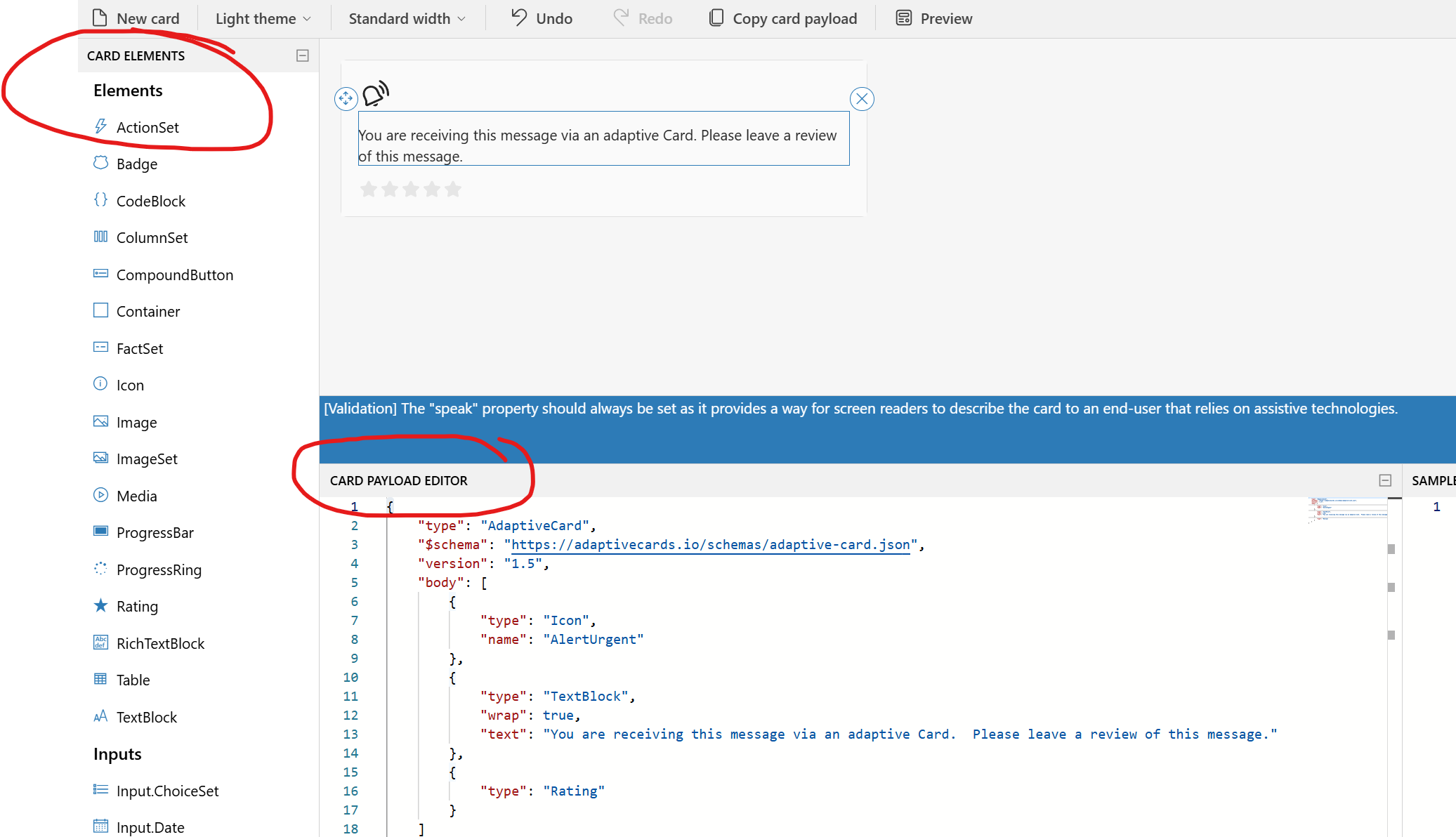
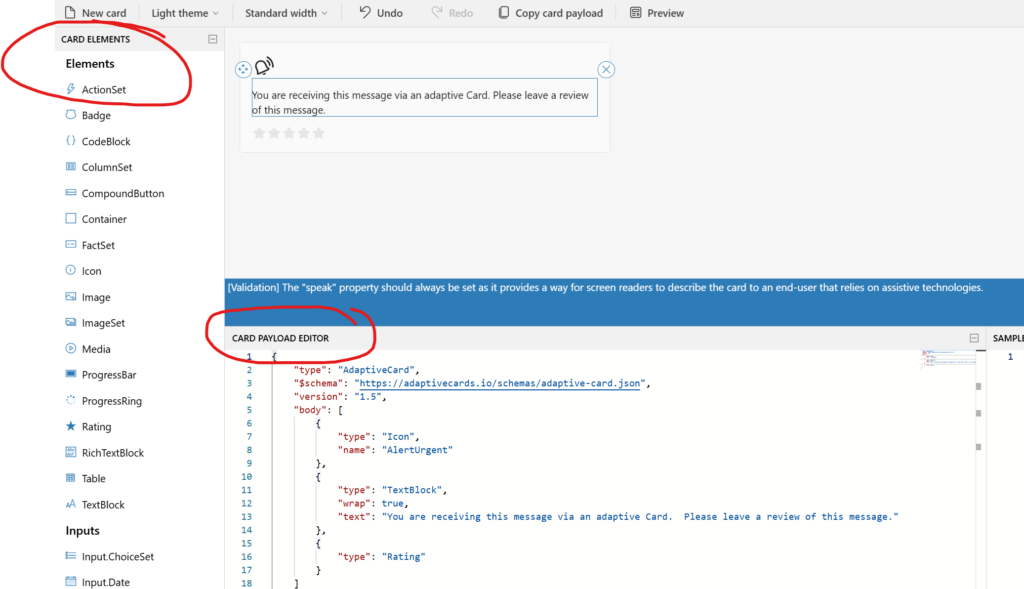
Adaptive Cards are built from JSON, but you don’t need to code them. The easiest way to create them is to use the Adaptive Card Designer, mock up your message, and then post it in the “Message” field of your action.
In the designer, I have a variety of elements to choose from that, when added to the designer window, will generate the required JSON to send my message.
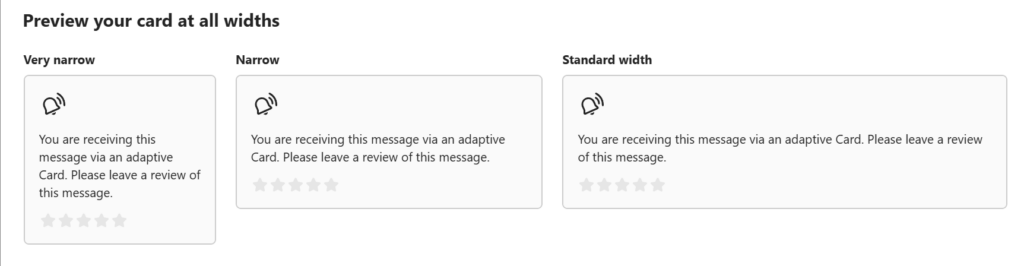
Best of all, you can preview how the message will look before integrating it into your code.
In this example, I built here, I used the “Badge” element to enable a notification to be classified and sent to me, letting me know my flow had completed its task.
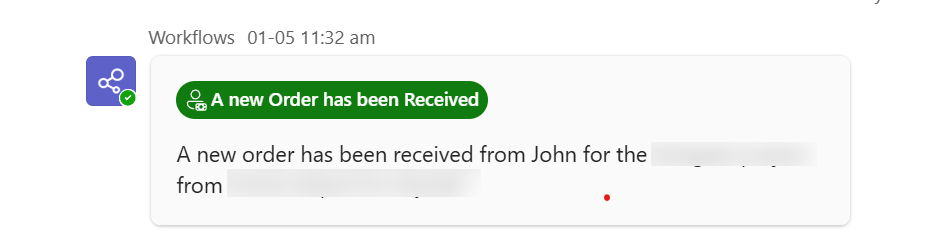
In my example, I had associated the flow with an existing record, but in the case where I could not do this, I switched up the colour of the badge so the user had an immediate visual context that they had to go do something – great for users who get lots of messages.
