If you’re just breaking into AI and PowerAutomate, you can implement some great, time-saving features with the “Run Prompt” action. The beauty of “Run Prompt” is that you can have it implement some common fixes as part of its evaluation and have it return data in a structured format for the rest of your flow to use, reducing the need for multiple evaluations throughout.
To start, you are going to go to the “AI Hub” and click the “Prompts” button to start building your prompt.
The Orders Prompt
In this example, I am providing my prompt with the content of an order’s email that I want it to parse. In doing so, I want it to extract the tracking information, the order, the details, format all dates into a specific standard, and return the data in a JSON structure that I provide. You can use the “Add Content” to provide
At the end of your structure, it’s very important that you provide a reference to the content that will be evaluated to accomplish this goal, in my case, the body of an email.

Testing the Prompt
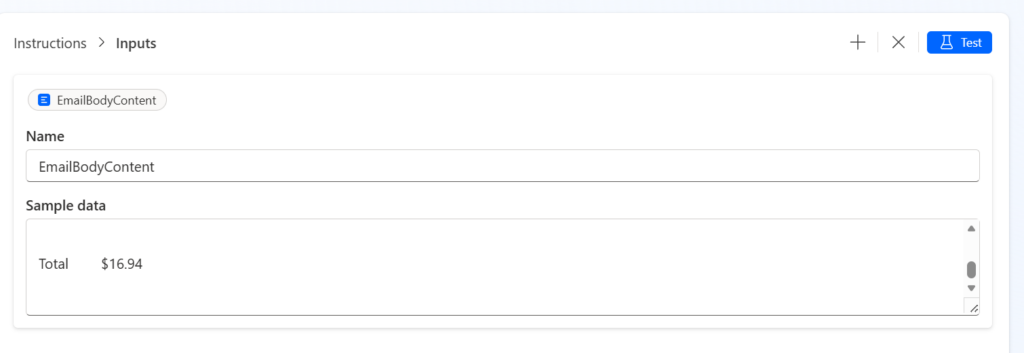
To validate your prompt, you can click “Test” and see the results it will provide, and continue tweaking it from there.
By providing an input (which will come from your flow), you can simulate the response.
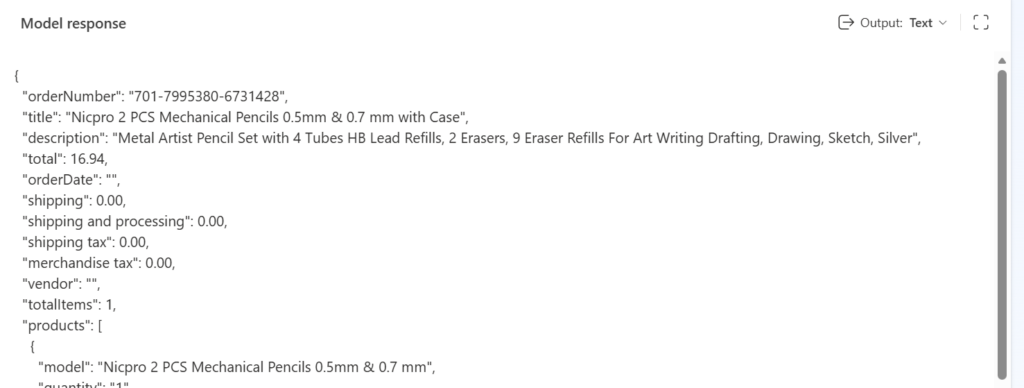
In my case, you can see it parsed my Amazon order email for the pencils I ordered (exciting, I know), into my JSON format
Consuming the Prompt
Once you are happy with your prompt (and you can always go back and update it), you can head back into your flow, where you can then consume it. In this example below, you’ll see I can select my specific AI prompt, and the exposed content for my emailBody is there, which I can reference from my flow.
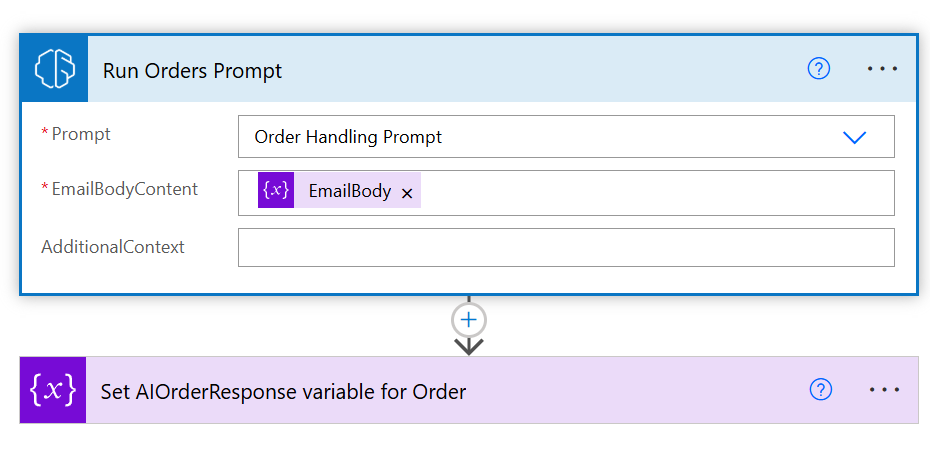
Once I have my AI prompt output into a specific JSON, I can then do a simple parsing of my JSON to get at the data itself.
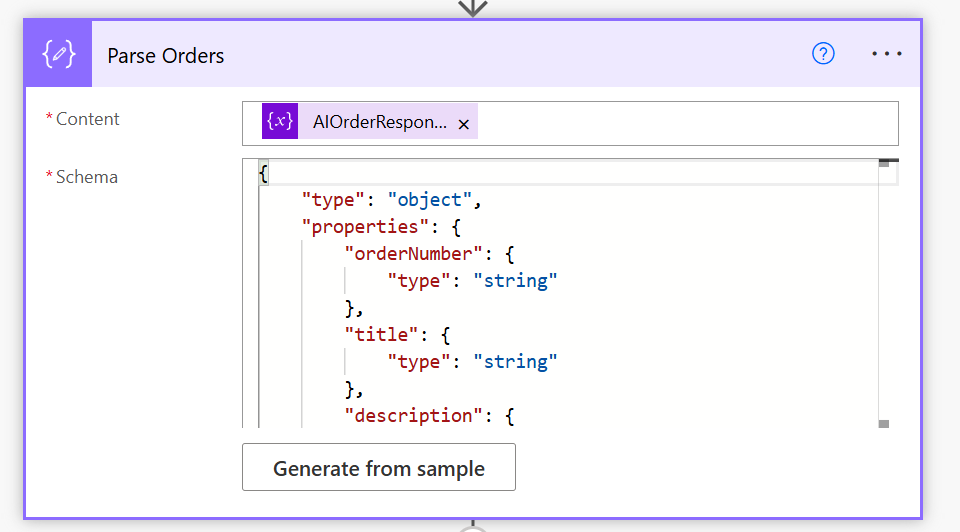
As you can see above in my prompt, I do specify the date format, as this became a problem when I was trying to input this data into the Dataverse. The same goes for float/decimal and integers, for AI it was easy to interpret but in my flow I kept running into comparison issues based on the formatting of the vendors information, to get around this, I formatted the JSON in the flow as “0.00” to ensure it forced a field to be a float (even if it was not).