I see questions popping up about automating email handling with the Dataverse, and I thought I’d write about some of the things that can catch you up the first time you do this.
Creating the Email Record
If you are using the standard Outlook/Office365 connector in Power Automate, you will get access to everything you need to access properties on the email. However, when you go to carry these over to the Dataverse, you will find things don’t line up perfectly.
The big gotcha is with the To/Cc/Bcc/From fields. In most scenarios, you want to line these up with your Dataverse records and/or create the records if they don’t exist. To do this, you need to identify where the email might be originating from (the contact, the account, the user, the lead, etc, etc). I kept this logic separate, and then you have to specify the relative field on the Active Party entity.
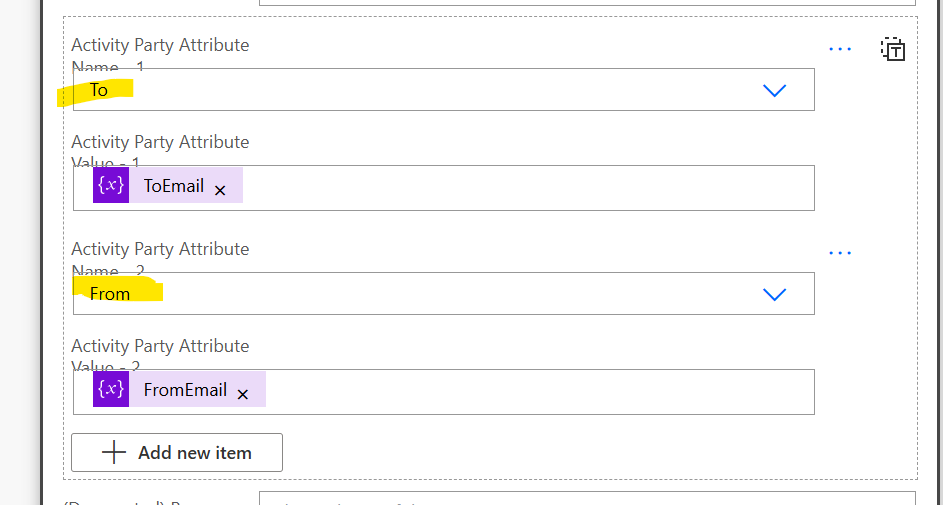
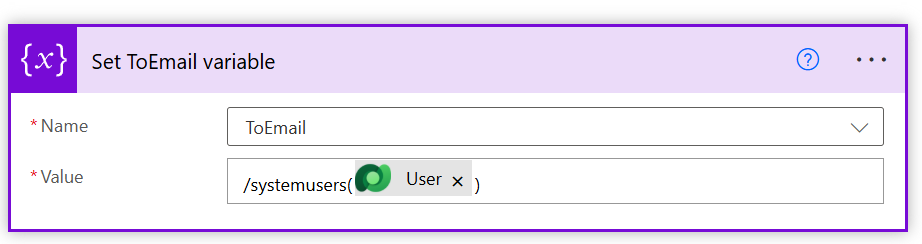
In this instance, for “ToEmail”, I had some lookup checks and then formatted the lookup field accordingly, depending on the entity I was looking for.
Priority
Sadly, there is no direct text mapping between email and dataverse priority fields (despite having the same values), but a simple expression declared as a variable at the beginning will ease your troubles.
if(equals(triggerOutputs()?['body/importance'], 'high'), 2,

      if(equals(triggerOutputs()?['body/importance'], 'low'), 0, 1))
Activity Status
Until the record is created, you cannot change the status code. I will never understand this rule, but it will also never change. In the case where you are processing an email, you will want to mark it as “received”, and this will have to be a secondary call (as the Activity Status field does not appear when you add a new record).

Attachments
Okay, this one can be tricky, but once you have it, it’s pretty straightforward.
First off, you will want to check for emails that have attachments that are not inline (to avoid signatures). When you’ve done that, you can loop through the “Attachments” property on the email. There are a number of properties here and the first thing you are going to want to do is to “Parse them as JSON” so you can get access to those properties – a sample subset of the items is listed below.
{
    "type": "object",
    "properties": {
        "@@odata.type": {
            "type": "string"
        },
        "id": {
            "type": "string"
        },
        "lastModifiedDateTime": {
            "type": "string"
        },
        "name": {
            "type": "string"
        },
        "contentType": {
            "type": "string"
        },
        "size": {
            "type": "integer"
        },
        "isInline": {
            "type": "boolean"
        }
    }
}
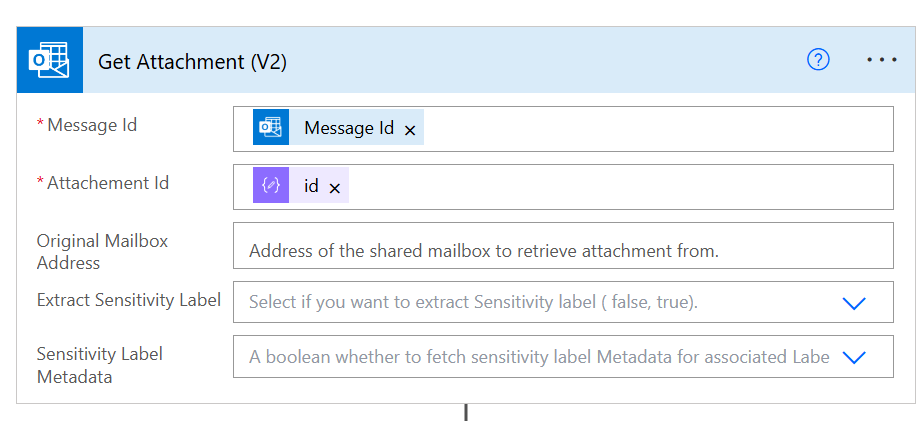
From there, you will use the “Get Attachment” action to retrieve the specified attachment you are looking for.
Lastly, and this is the part that was a while of trial and error, you are going to create an attachment file record in your dataverse and link it to your email at the same time. But the flow is not straightforward.
First off, the entity requires a Guid, but it doesn’t have one until it’s created, so to get around this, you will pass in null (I tried generating a Guid and this threw an error).
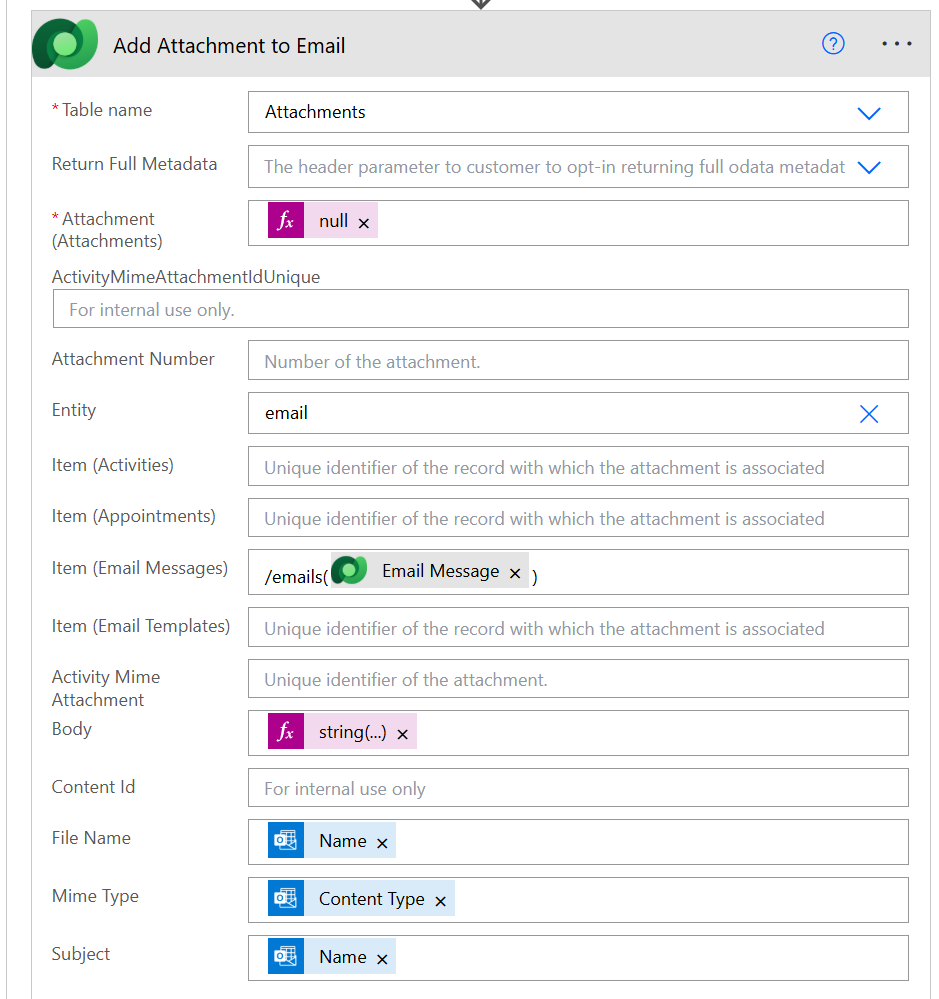
Lastly, the body can get confusing, but essentially all you want to do is wrap the content of the attachment in a string(), and then it will work fine.
string(outputs('Get_Attachment_(V2)')?['body/contentBytes'])Once done, you will be able to flawlessly handle emails. It can take a bit to get working, but then once it does, it’s a thing of beauty and runs solid.