The “Wait” block in a Customer Journey is a very powerful tool in monitoring back-end communication with your journey while the rest of the flow progresses, and avoids having to create multiple Journeys to do what one Journey can. When building a “Wait” you are telling the system to hold on for a period of time before progressing. And although it can be good to set this as an arbitrary time, what is even better is if you tie it to your events and data.
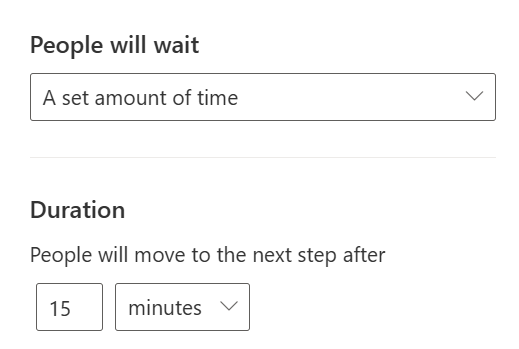
A Set Amount of Time
The easiest option is to tell your Journey to wait for a random period of time in minutes, hours, days or weeks. Add in a number, and the next step will not be processed until that duration is reached.
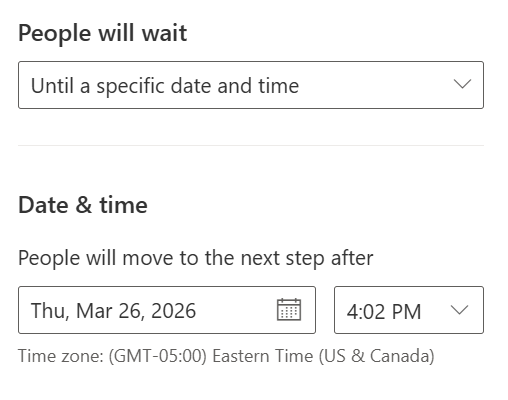
Until a Specified Date and Time
A little less random and more defined, you can specify your Journey to wait until a specified Date and Time. This might be the case if you had a hard cutoff date for an event that had to be respected and you wanted to ensure that any changes in the system (accidental or otherwise) did not affect the next step from occuring.
Until a time specified by the Trigger
But by far the coolest “Wait” is when you can link the wait time to a specified trigger or change in data. As you might imagine, this is most closely related to a Trigger Journey where you are tracking the actions of people who have received your emails.
The first step is to configure the attribute you want to “trigger” the wait on, this is the data (i.e., the field) that will be used to determine the timing of when to take your next action. In my case, I have setup an event, and tried my trigger to the start date of that event.
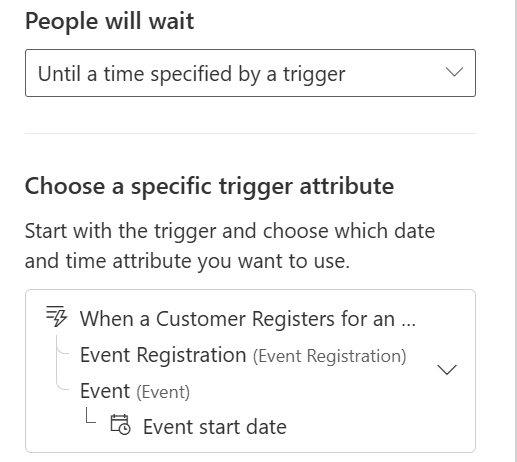
From here, I can then determine the timing of what I want to do and how long (Minutes, Hours, Days, Weeks) I want to wait, and I have three options to accomplish that;
- Before the Specified Time – At what interval before the event start date do I want to do something?
- At the Specified Time – Wait until the actual event start date and time to do anything.
- After the Specified Time – At what interval after the event start date do I want to do something?
A common example (especially for events) could occur as follows;
- One Week before – “Hey it’s almost time for the event, have you booked your meal?” email.
- One Day before – “See you tomorrow” email.
- At the Specified Time – “It’s Happening now” email.
- After the Specified Time – “Thanks for coming, see you next year” email.
In the last example, if you are using Event Registration for check-ins, you can send out that email based on their check-ins as well.
Waits are pretty powerful and a great way to build some simple automation into your Customer Insights Journeys.