I’ve recently been working with a client on setting up a fresh PowerApps system with a number of environments, and of course, I wanted to put PowerApps Pipelines to the test.
You can get yourself into a muck if you don’t plan out your pipeline deployments, and one thing that I saw recommended was to remember to treat your pipelines like Azure DevOps or GIT – i.e., there is a system in the middle that is deploying your code to these environments, not one of your existing environments.
In your new “DevOps/Pipeline” environment, you want to make sure you have the following app available to you.
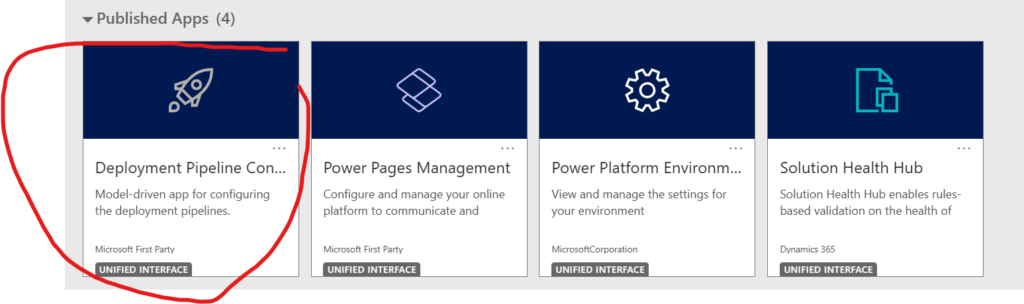
To get this app, you need to install the “Power Platform Pipelines” app. Initially, you won’t have anything, but when you get going, you’ll start to see the following status on your deployments.
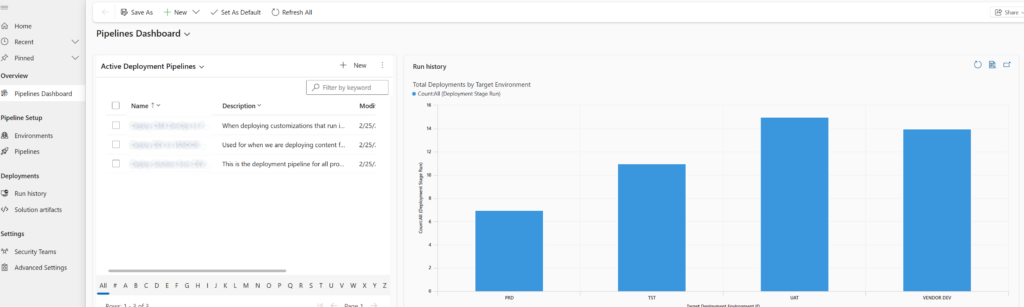
The most important thing you need to setup are your environments, with no environments, come no deployments.
Creating your Development Environment
Your Development Environment is where you work, where everything originates from. If you have a multitude of DEV environments, you need to determine where your core is and where you are deploying to. In my case, we have a vendor, DEV, for third-party work.
You need to specific for your primary development environment as your Development environment. To properly set up your environment, you need to copy the “Environment Id” from your admin console to this form.
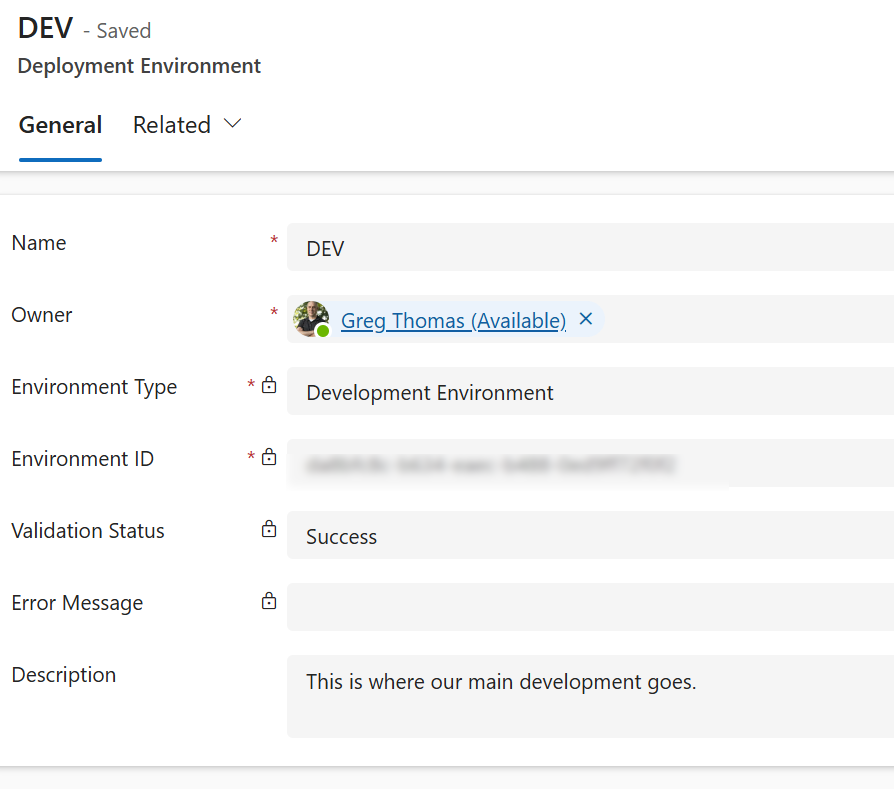
Once saved, PowerApps will attempt to set up your environment record with this environment. I had a case where I was struggling to get an environment validated (because I had set up pipelines on my dev environment initially).
There is a great button in the menu bar that lets you hard slam the association called “Force Link”

Basically, Force Link checks to see if there is another association to this environment and then pushes it’s association over all other associations.
Setting up your Target Environments
Your Target environments are where you are deploying code, so the only difference in setting up your Target Environments is selecting “Target Environment” from the Environment Type dropdown.
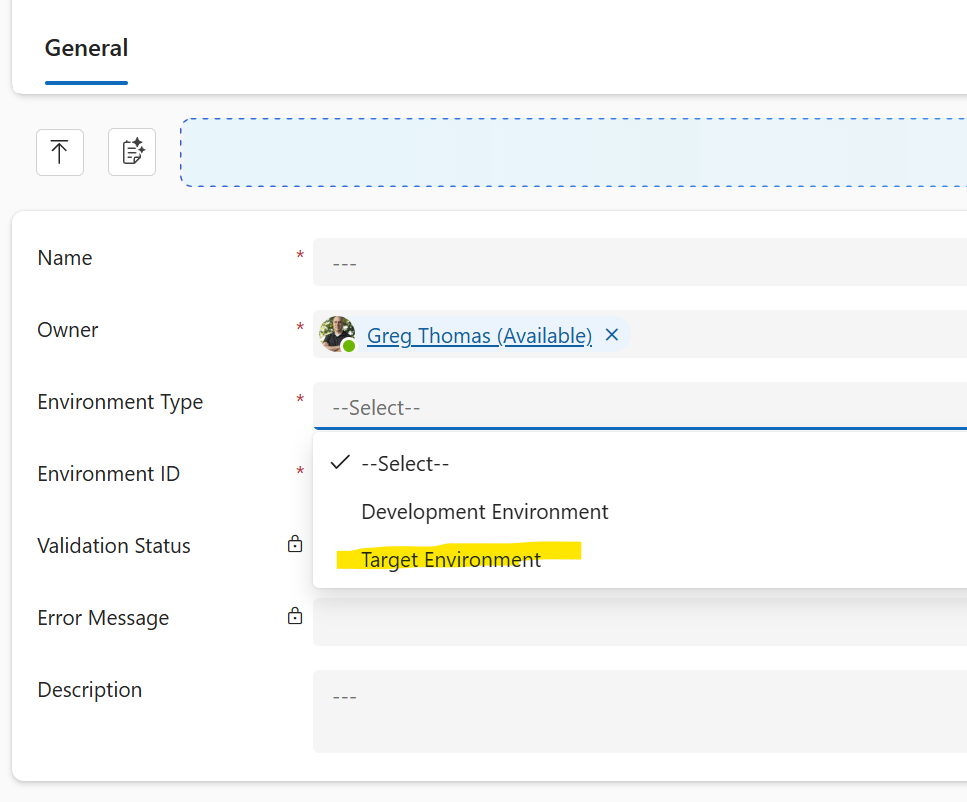
At this point, when all your environments have been successfully setup, it’s time to create some pipelines.