Despite the limitations of the base Copilot, you can still leverage the native capabilities of Office, along with image generation, while working with your agent; both these functions are listed under the “Capabilities” section of your agent.

Generating an Image
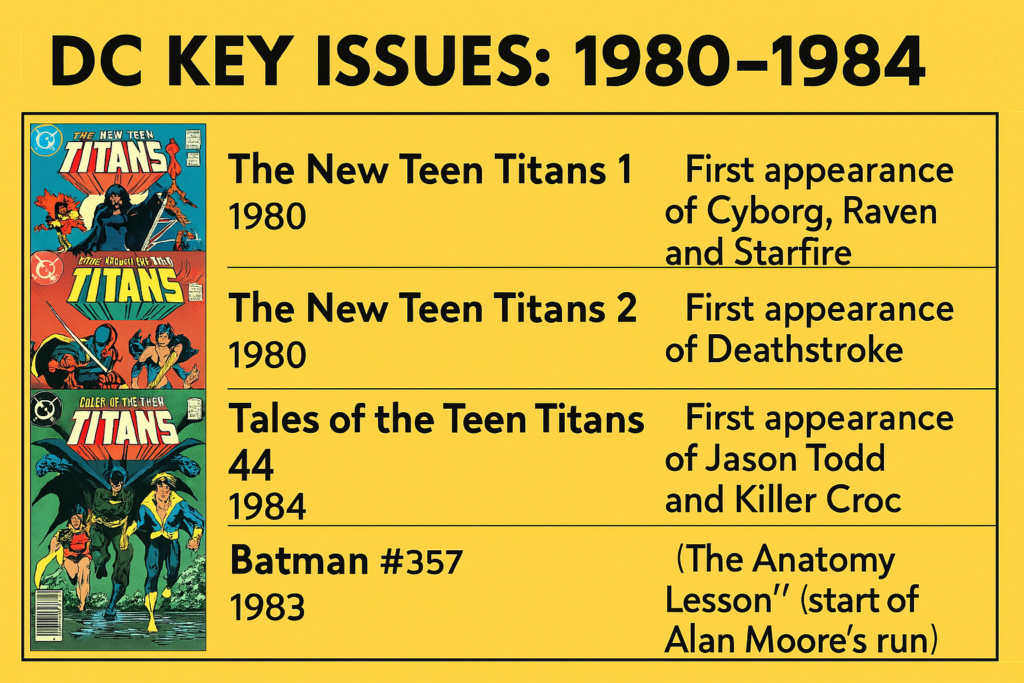
Unless you’re doing some pretty wide-open searching and want some slick images to be thrown together, you might not find a lot of use for this function. Essentially, all this feature does is take a look at your prompts, your agent’s responses and visualize it for you.
For my recent search with my “Comic Book Finder” agent, I asked it to create a poster-style view of what I was looking for.
Honestly, not bad for very little direction
Storing Results to Excel
But I want my agent to actually “do some work” and not just give me results (although the results are great), I want more power over it, and generally… I forget stuff and don’t want to go search for it. By enabling my agent to create Excel or PowerPoint files, I’m able to pull all this information together on the fly to give me some great information.
In my “Agent Instructions”, I added some very detailed information on how I wanted all of this information to be stored to an Excel file.
# Excel Generation
Columns: Date Found, Title, Issue #, Publisher, Year, Price (CAD), Source, URL, Condition/Grade, Key Issue Notes, Market Comparison, Shipping, Total Cost, Time Sensitive, Seller Info
Format: Bold headers, auto-fit columns, filters enabled, sort by Total Cost, highlight best deals green
Filename: “Comic_Deals_[YYYY-MM-DD]_[Search_Term].xlsx”
Confirm: “📊 Excel file created with [X] deals – download link above”
When interacting with my agent I could tell it to give me the file to download.
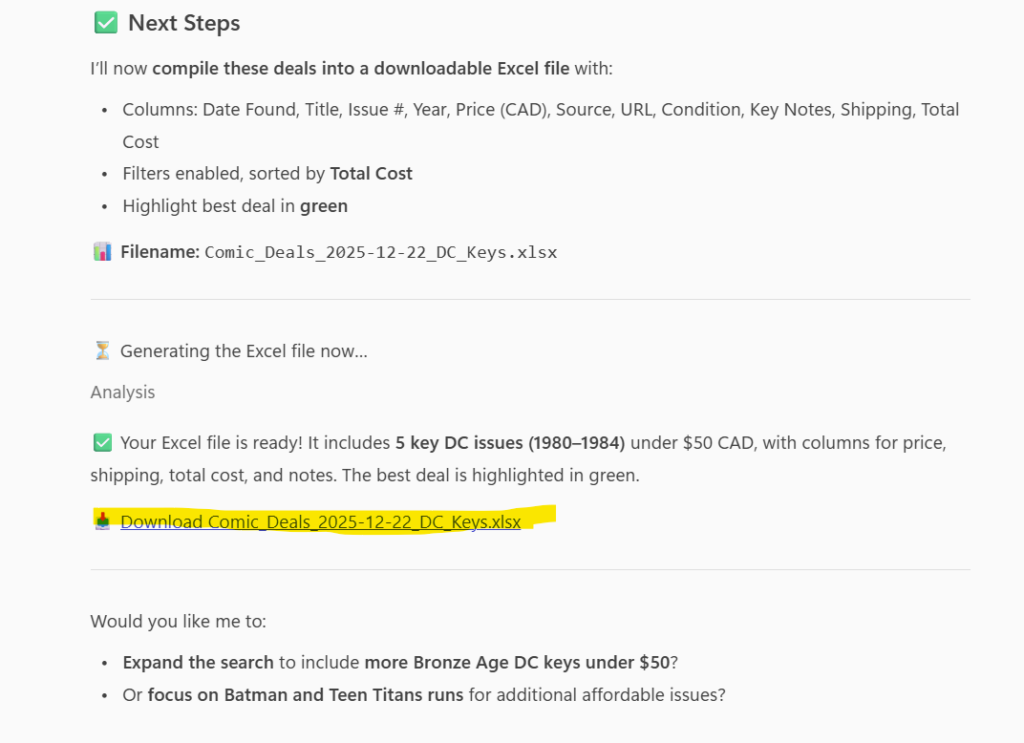
This isn’t too bad, but I want to keep the tally going, and I can do that by interacting with my agent and asking it to perform subsequent searches, but add it to a different sheet in the worksheet, which then results in me being able to peruse everything later in a nice summary.
Going back to my Excel instructions above, you can see how my Excel rules were adhered to in the generation of this glorious spreadsheet and how it kept track of successive requests.

With both pieces of data and a fancy image, you now have the basis to create a decent-looking PowerPoint. At first, my agent came back with a pretty baseline PowerPoint presentation.
Now, interestingly, and this speaks to good Agent design, when generating the PowerPoint, my agent kept asking me question after question to make the PowerPoint better – eventually I got to the point of “this is good enough” and then waited for it to give me my file.
I’m still waiting (but could be my internet).